


Performance optimizations
One-Click Optimization
TheGem includes one-click optimization, which can be found in Theme Options under “Performance” menu.
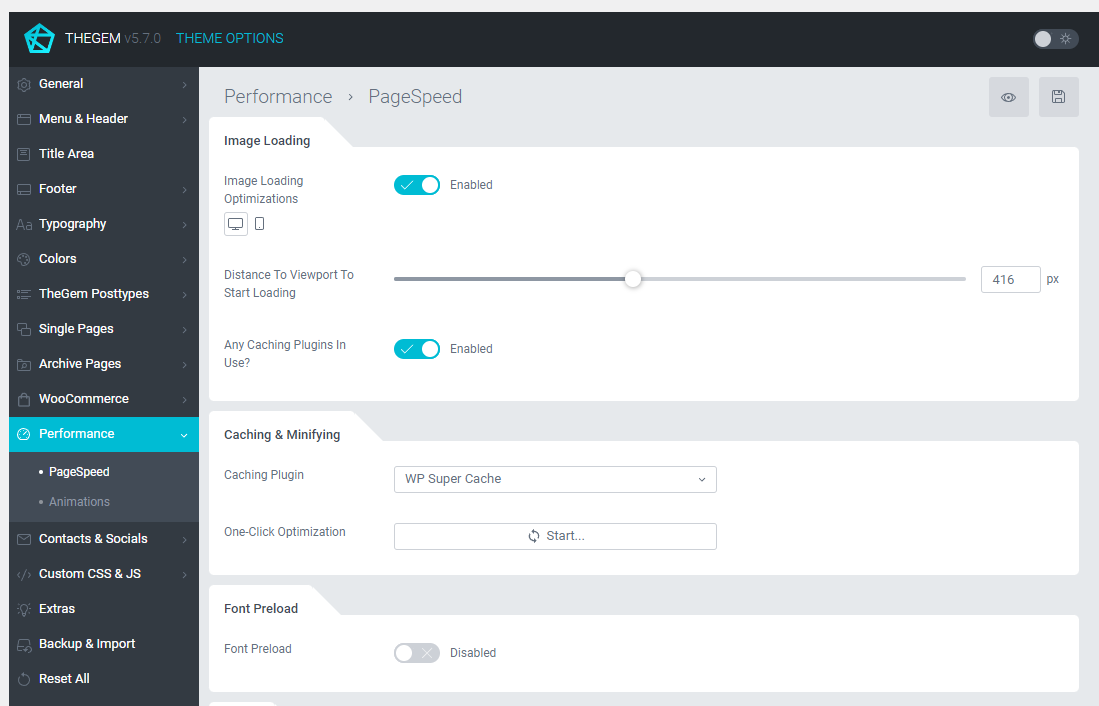
With this tool you can enable and apply optimal optimization settings for website caching and JS/CSS minification with just one click. To do this, simply click on “Start” button and wait till the optimization process is finished.
Website Caching
Caching pages and resources of your website properly is an essential part of any performance optimization process.
WP Super Cache
One-click optimization tool uses WP Super Cache plugin for providing website caching. WP Super Cache is free, it comes bundled and will be automatically installed during the one-click optimization.
One-click optimization process includes the automatic setup of WP Super Cache with the settings, optimal for TheGem. So in fact you don’t need to setup or adjust any settings manually – everything will be done automatically.
Please note: the default recommended settings for WP Super Cache have been tested only with TheGem and its plugins. In case something will not work as expected after the installation of WP Super Cache please check third-party plugins you might be using on your WordPress installation and refer to the documentation of WP Super Cache
Please remember: using too many third-party plugins can cause a serious performance breakdown
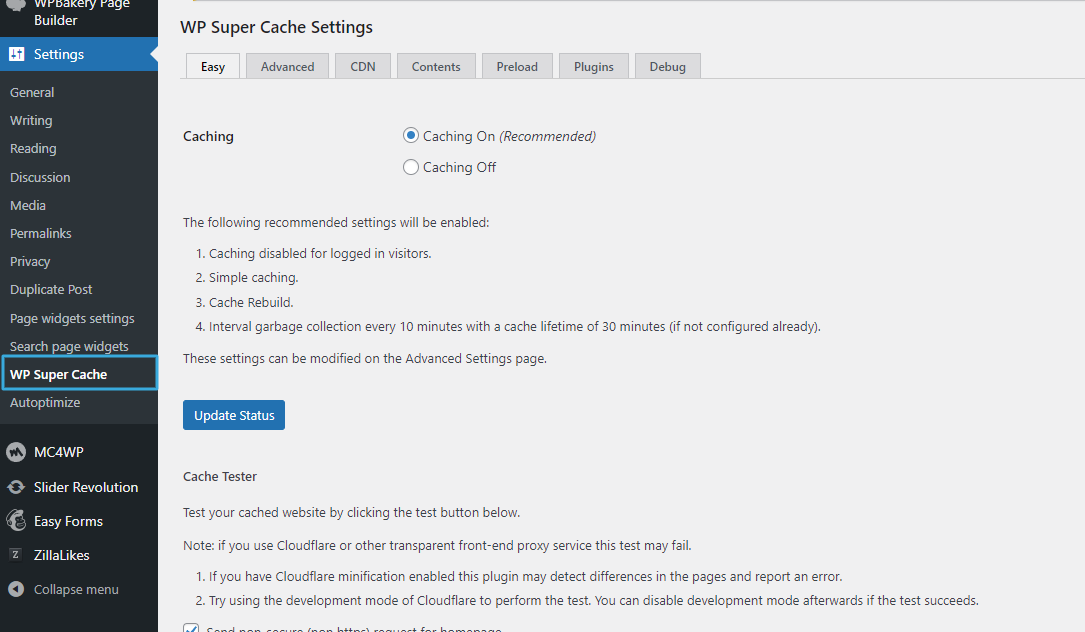
You can adjust any settings of WP Super Cache manually here:
WP Rocket
Alternatively you can use WP Rocket plugin for website caching. Please note: This plugin is a premium plugin, it is NOT bundled and can be separately purchased at https://wp-rocket.me/
After purchasing your own copy of WP Rocket, please follow this steps:
1. Install this plugin and activate it with your WP Rocket license
2. Go to “Theme Options → Performance → PageSpeed → Caching & Minifying”
3. In “Caching Plugin” select “WP Rocket”
4. Click on “Start…”
One-click optimization process includes the automatic configuration of WP Rocket with the settings, optimal for TheGem. So in fact you don’t need to setup or adjust any settings manually – everything will be done automatically.
CSS & JS minification
Minification of css & js files is provided by another popular plugin: Autoptimize. This plugin is free. You don’t need to purchase any license and you don’t need to install and activate this plugin manually. The installation process will be done automatically during the one-click-optimization routine and includes the automatic setup of Autoptimize with the settings, optimal for TheGem. So in fact you don’t need to setup or adjust any settings manually – everything will be done automatically.
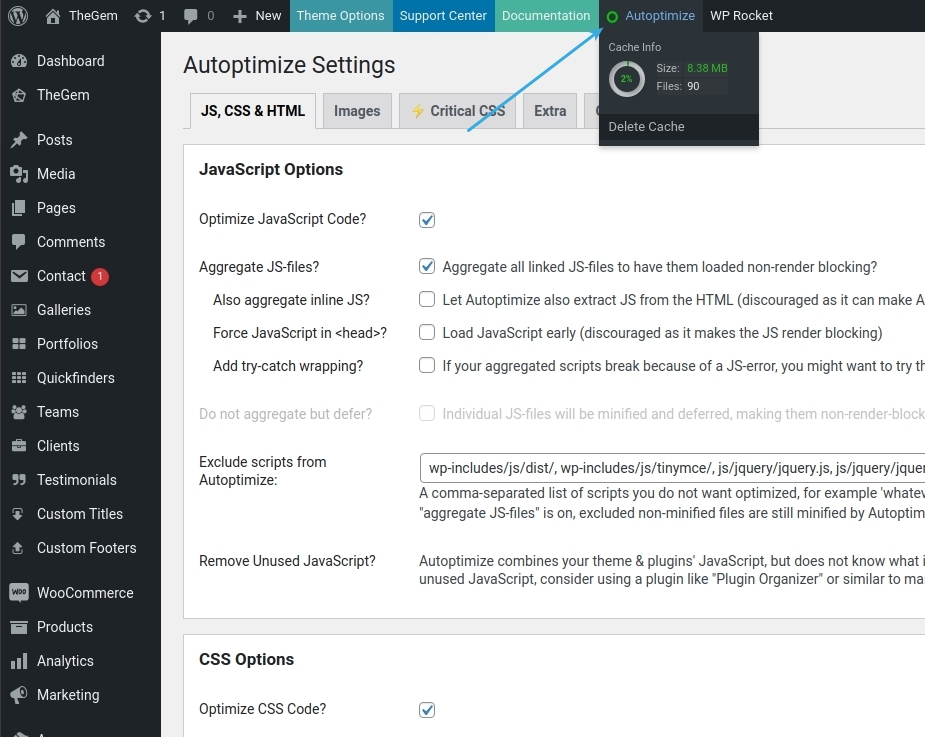
You can adjust any settings of Autoptimize manually here:
REDO ONE-CLICK-OPTIMIZATION
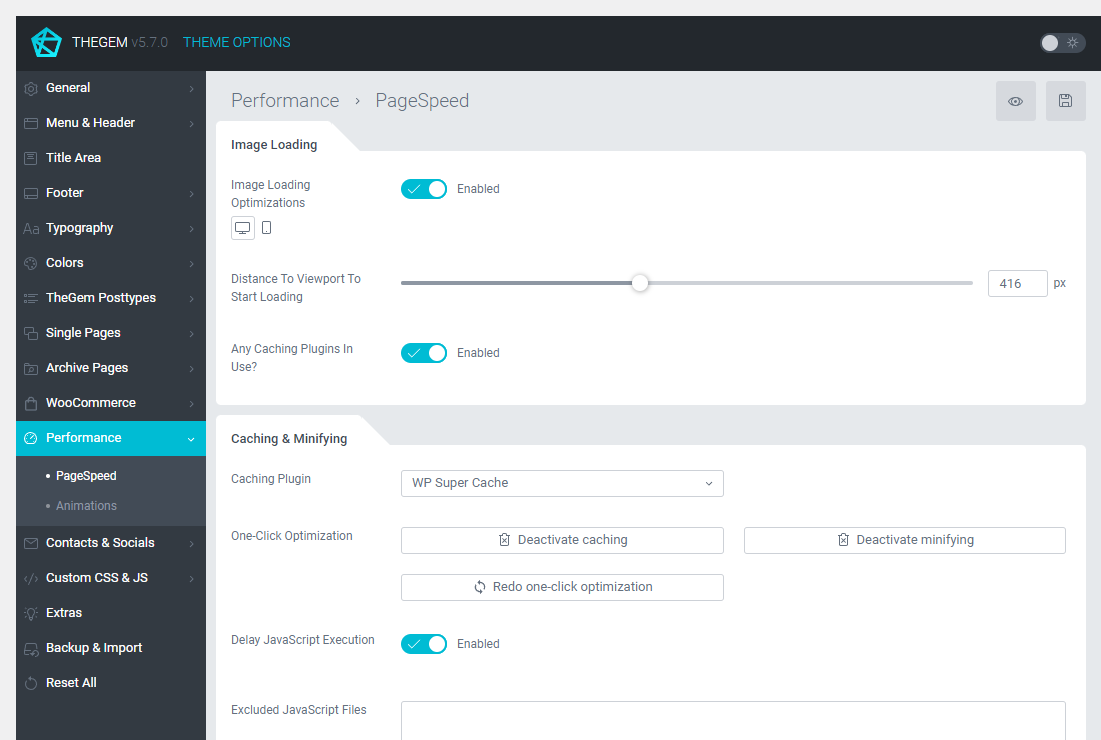
In case you have changed some settings of WP Super Cache and/or Autoptimize after the one-click optimization has been done and you don’t like it and you wish to redo the one-click optimization to restore the default settings of one-click optimization, simply use “Redo one-click-optimization” button.
Disabling caching & minification
Disabling for the entire website
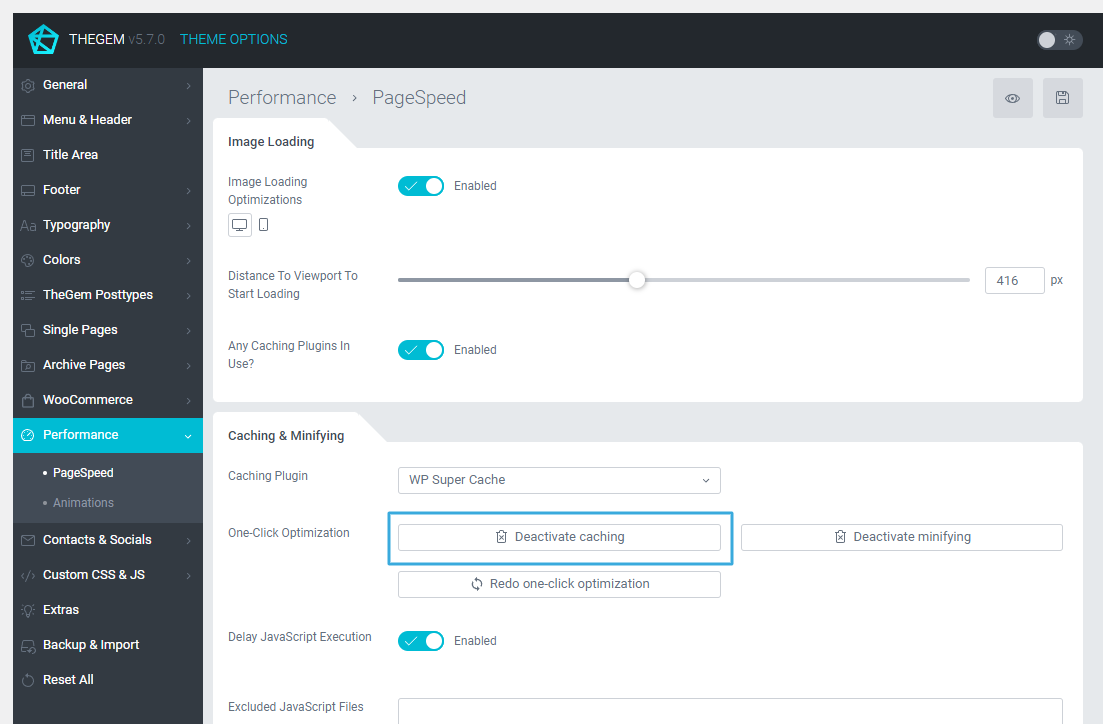
You can always disable caching and/or minification by using this buttons
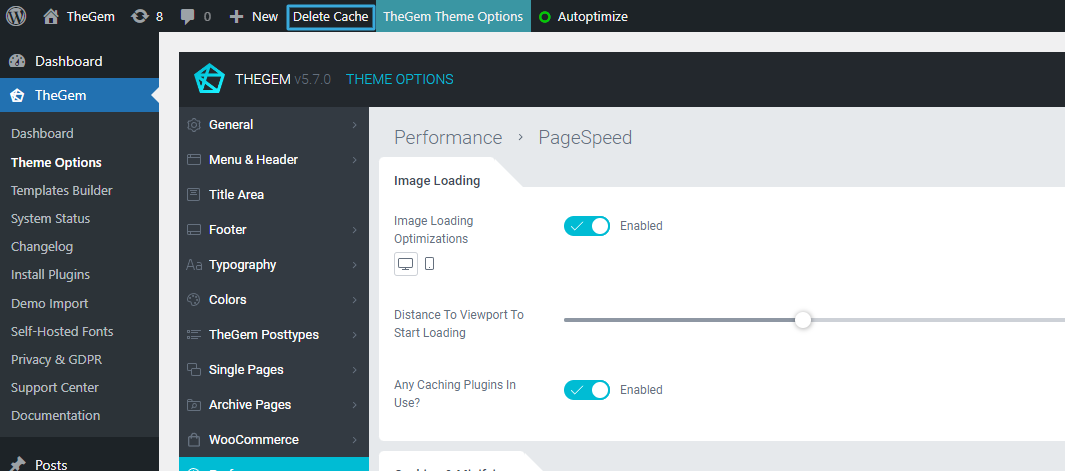
Please note: before disabling you need to empty your Autoptimize and WP Super Cache caches here
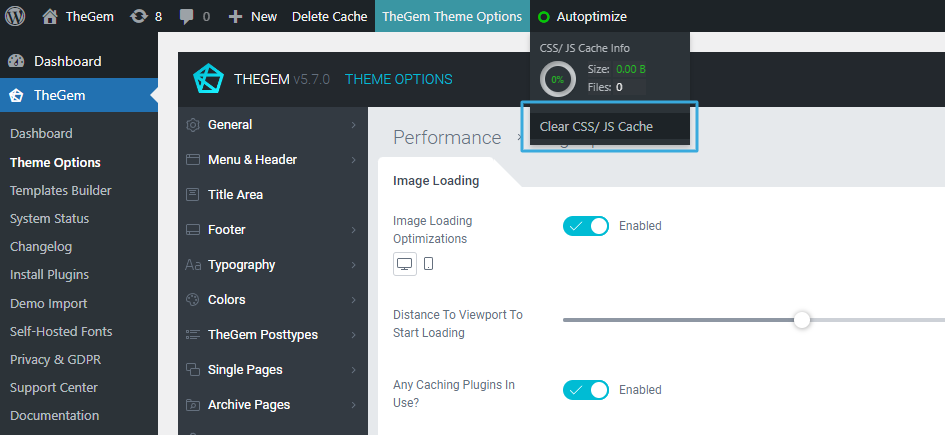
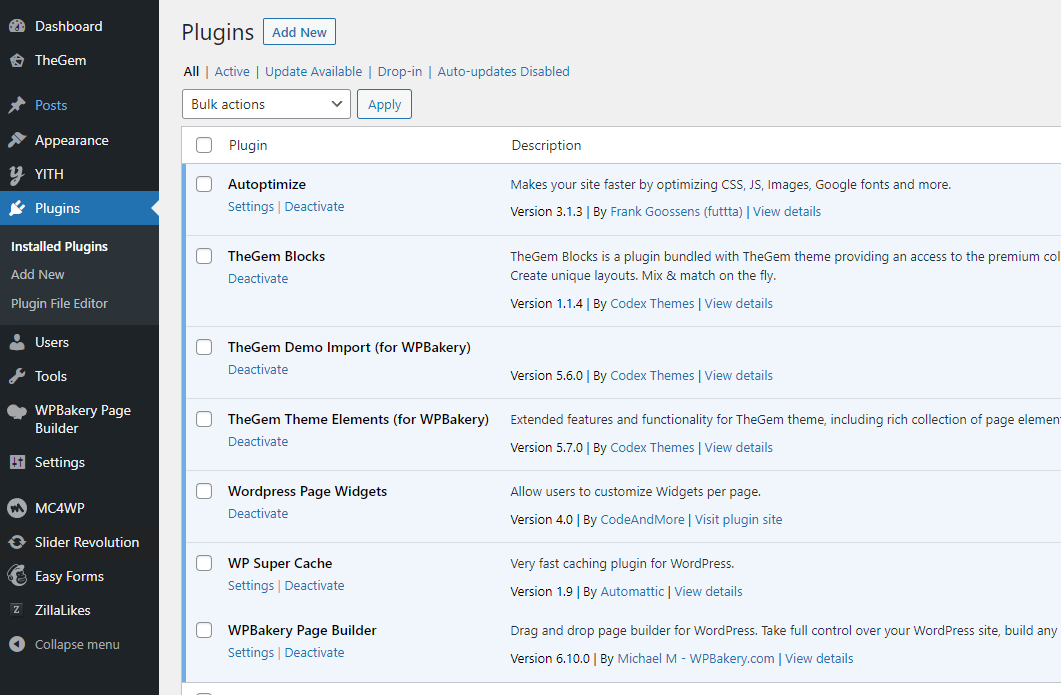
otherwise it could happen, that your frontend will still be cached even after disabling. If you have cleaned your caches, disabled both caching and minification and still get the cached version of your frontend, simply remove both plugins (WP Super Cache and Autoptimize) from the installed plugins list
Disabling Caching for individual posts/pages
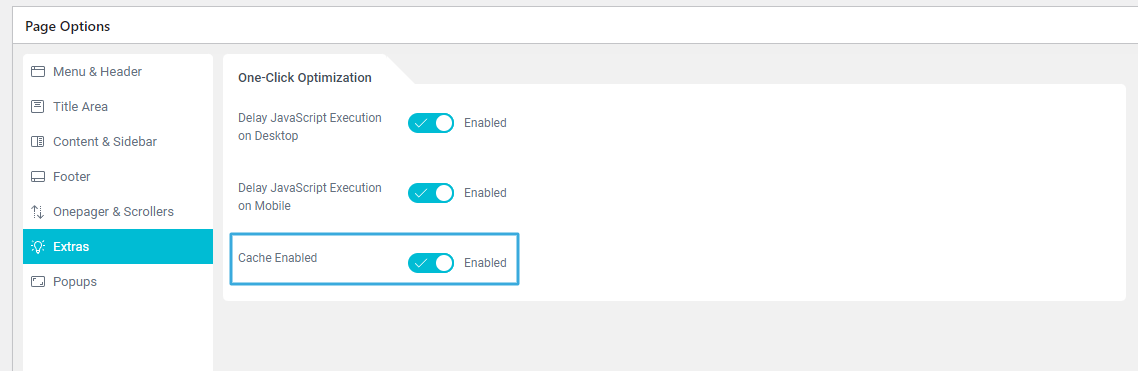
You can also enable/disable caching for separate posts/pages individually:
1. Go to Page Options of the page/post
2. Under “Extras” → One-Click Optimization” use “Cache Enabled” setting
Delay JavaScript Execution
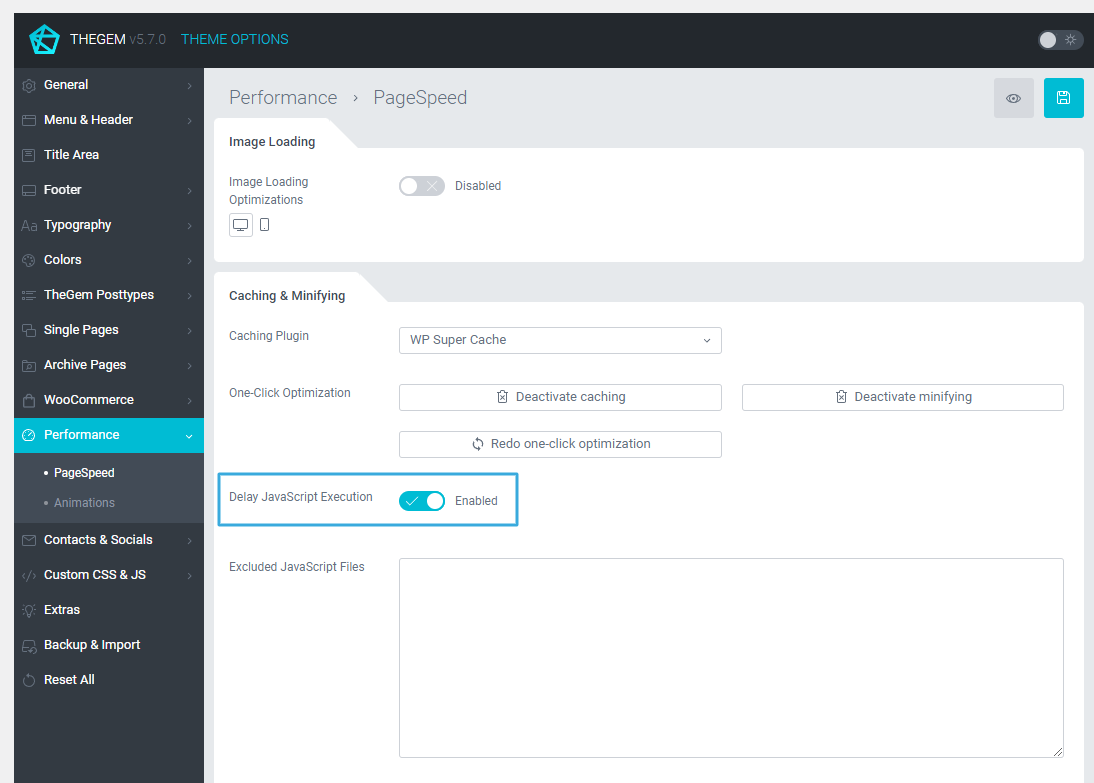
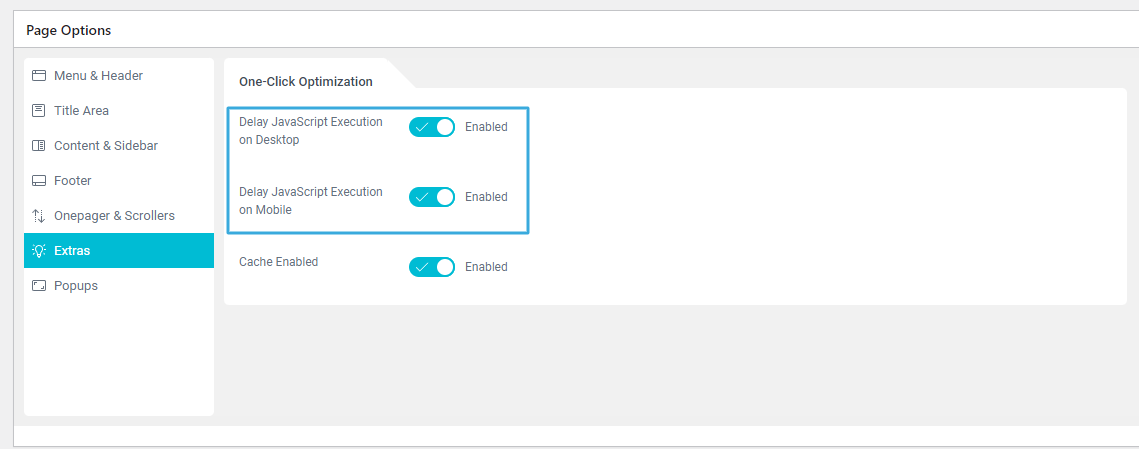
This option improves loading speed and performance by adding delay in loading of JavaScript files. Loading starts after the user interaction. This setting is available only in case one-click optimization with WP Super Cache has been activated.
You can enable/disable JS delay for the entire website in Theme Options → Performance → Caching & Minifying
or for the individual pages/posts in Page Options:
If some JS files should be excluded from JavaScript delay (i.e. should load normally), you can use “Excluded JavaScript Files” text area to specify JavaScript files which should be excluded. You can use URLs or keywords, one per line, for example:
/jquery-?[0-9.](.*)(.min|.slim|.slim.min)?.js
js-(before|after)
(?:/wp-content/|/wp-includes/)(.*)
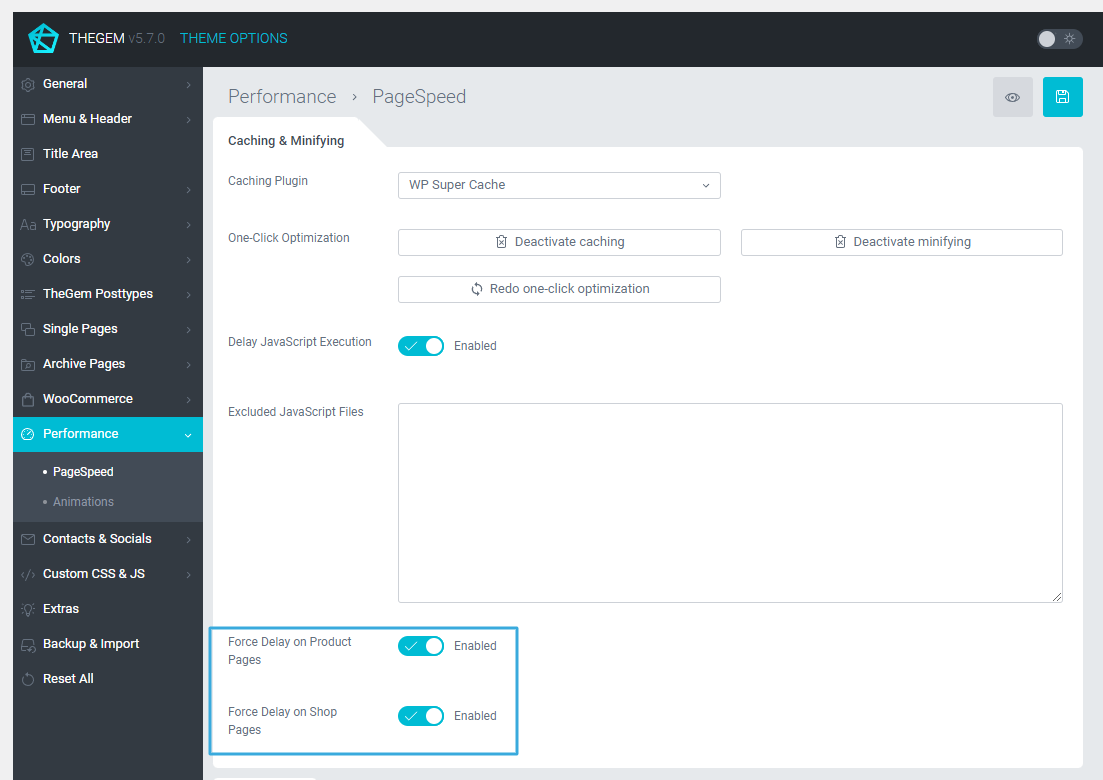
Force Delay on Product Pages
This option is available in case you run an online shop with WooCommerce. By default all product pages are excluded from scripts delay. If enabled, this setting will force scripts delay on all product pages increasing its performance. Please note: as product pages may contain different sets of variations, which loading requires different WooCommerce scripts, enabling this setting may cause layout shifts in products. Please check your product pages after enabling this setting.
Force Delay on Shop Pages
This option is available in case you run an online shop with WooCommerce. By default all WooCommerce archive pages (main shop page, product categories etc.) are excluded from scripts delay. If enabled, this setting will force scripts delay on all WooCommerce archive pages increasing its performance. Please note: as WooCommerce archive pages may contain different sets of variations, which loading requires different scripts, enabling this setting may cause layout shifts in products grid. Please check your main shop page and product categories after enabling this setting.
Additional information
Followings aspects cannot be optimized via TheGem’s one-click optimization:
1. Images: Always optimize your images for web to reduce their size. There are several ways to achieve this, please refer to this recommendation
2. Third-party plugins: with increasing amount of third-party plugins and scripts you may decrease the performance of your website, please refer to this recommendation
3. Sliders: revolution slider, layerslider and any other type of sliders used in hero section of a page decrease webpage performance, especially on mobiles. So if you are not satisfied with your mobile pagespeed score on a page with slider, try to avoid using it and replace with images, backgrounds and TheGem’s animated headings
4. Server response time: Though TheGem’s one-click optimization will improve your server’s response time, running the website on the slow hosting will definitely lead to poor pagespeed results. This depends on the server you run your website on, please refer to this recommendation
IMAGE LOADING OPTIMIZATIONS
TheGem includes one very useful feature, allowing you to enable the image loading on your webpages in a smart way. In common terms it is a lazy loading of media resources upon arrival of the browser/device viewport. In this way, by loading your webpage, all images below the fold (which are not immediately displayed for user) are physically not loaded. And only by scrolling down the page, as soon as this images appear in above the fold area they are being loaded and displayed. In order to avoid any unpleasent loading interruptions, there is a special “buffer” zone below the fold, which enables the image loading some pixels before this images appear in above the fold area. You can enable and set this feature in TheGem here:
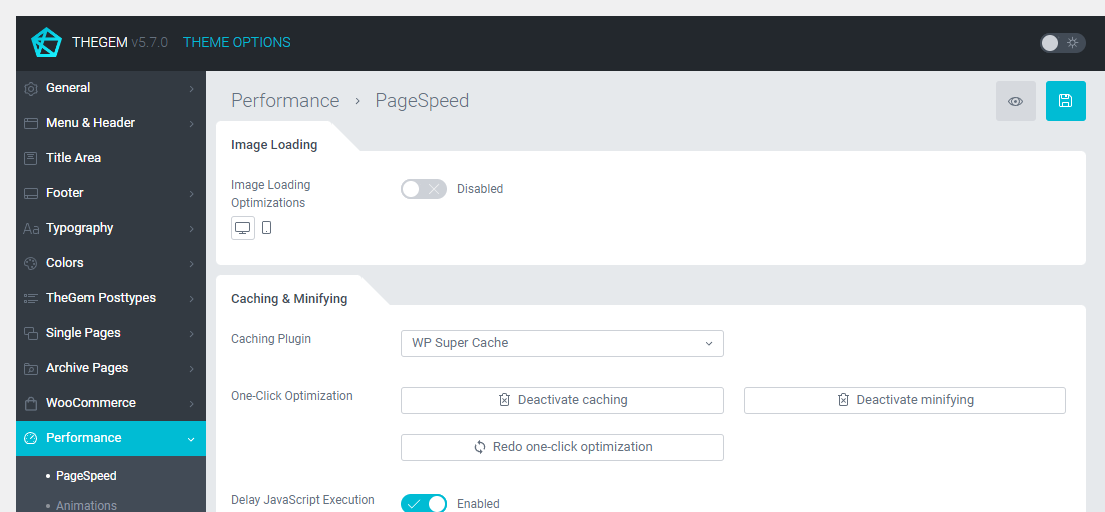
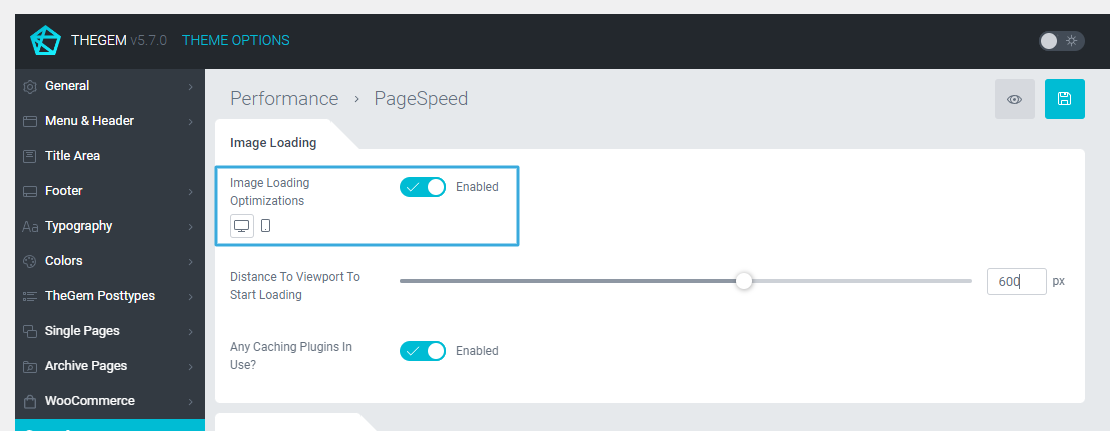
By default, this feature is disabled and can be enabled with this setting:
You can control the buffering area with this setting:
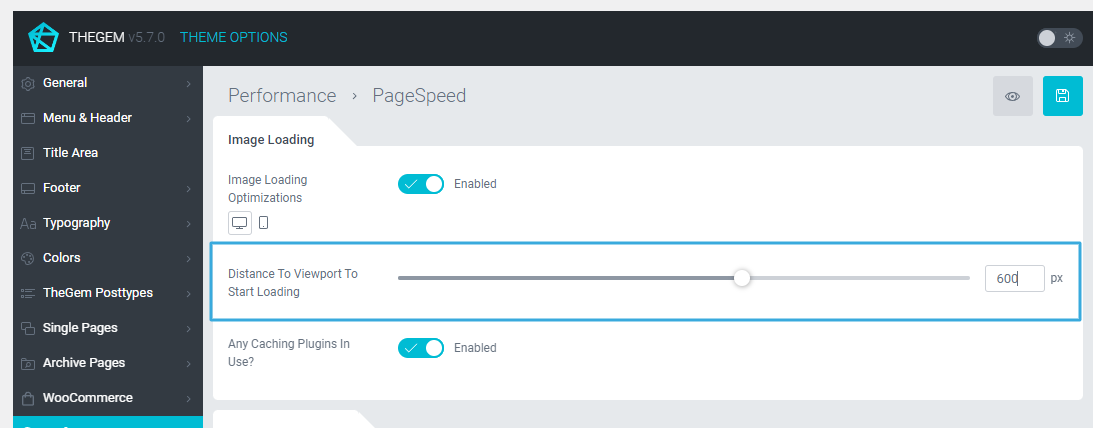
You can enter an any value in pixels here; we recommend to use 400-600 pixels.
In case your website uses any caching or minification plugins or technologies (see above;
we strongly recommend to do this) you need to activate this setting:
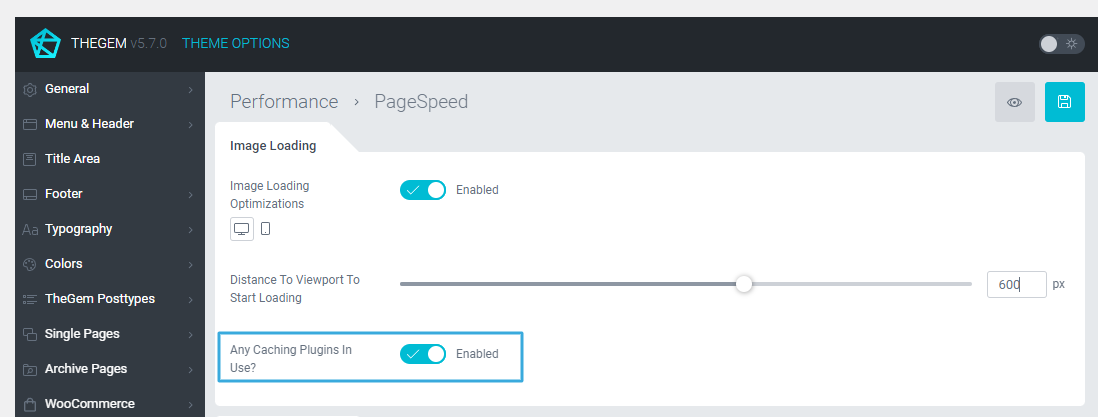
in order to get this feature to properly work.
RECOMMENDATIONS
You are certainly already aware of the importance of performance optimizations and have checked this kind of useful articles on how to optimize your website for better loading speed:
https://www.keycdn.com/blog/google-pagespeed-insights-wordpress
TO KEEP THIS SHORT, HERE IS THE LIST OF CRITERIAS WHICH SHOULD BE MET:
1. Web-optimized images & media
2. Lazy loading of media assets
3. Minimization of client-server requests:
4. Web-optimized images & media
5. Lazy loading of media assets
6. Minimization of client-server requests:
- minimization of number of scripts used on the page
- minimization of number of styles used on the page
- minimization of number of media & other resources used on the page
7. Proper positioning of page’s styles and scripts
8. Webpage caching and JS & CSS minification
9. Fast server response time
10. CDN
In addition, specifically for WordPress, one more point is important:
11. Use as less third-party WP plugins as possible
12. Try to avoid heavy sliders in hero sections
BRIEF EXPLANATION OF THIS CRITERIAS:
USAGE OF IMAGES & MEDIA, OPTIMIZED FOR WEB (IN YOUR TODO):
Always optimize your images for web to reduce their size. You can do it manually by “saving for web” in your image editor, you can use third-party online optimizations like TinyJpeg or Jpegmini, you can use CDNs with image optimizations like “Polish” by cloudflare to serve the images in modern formats (WebP) or you can use services like “Imagify” by WP Rocket team.
LAZY LOADING OF MEDIA ASSETS (ALREADY DONE, CAN BE ENABLED IN THEME OPTIONS)
Lazy loading of media assets is extremely important for the performance of a webpages as it allows to avoid loading of all media assets immediately on page load, but to load assets only by nearing the viewport. Please refer to this article for more details
MINIMIZATION OF CLIENT-SERVER REQUESTS (ALREADY DONE)
While using TheGem you should not care about this point, because all scripts and styles in TheGem are already optimized to be kept at the lowest needed level. However, while building your own new webpages, keep in mind, that the higher number of used media content (for example images) results in higher number of server requests.
PROPER POSITIONING OF PAGE’S STYLES AND SCRIPTS (ALREADY DONE)
Again, you should not care much about this point, because all scripts & styles in TheGem are already positioned properly to get the highest loading pagespeed scores.
WEBPAGE CACHING AND CSS & JS MINIFICATION (ALREADY DONE, CAN BE ENABLED IN THEME OPTIONS)
It is strongly recommended to minify the code of your web-pages to achieve better pagespeed results. For faster delivering of static content Google recommends to use webpage caching. In this way all your pages are getting cached and saved on your server, so by requesting this pages the delivery occurs in much faster way.
TheGem includes one-click optimization feature, allowing you to setup webpage caching and minification with just a single click. Please refer to this article for more details
SERVER RESPONSE TIMES (IN YOUR TODO)
This is how quick your server reacts to client’s requests. The best way to achieve fast response times is to choose proper hosting provider like for example:
In case the response time is low, you need to contact your server’s provider to resolve this issue or, alternatively, use another server & hosting provider
CDN (OPTIONAL, RECOMMENDED)
CDNs are an excellent way to speed up your webpage loading by delivering it to the user from the nearest available server, in this way reducing the number of nodes needed to deliver your content. If your website audience come from all around the world or from different countries, we recommend to use CDN services. Another useful feature here is an option to use smart image compression (available via CloudFlare, https://blog.cloudflare.com/introducing-polish-automatic-image-optimizati/). If you choose to use such tools like “Polish” in CloudFlare, you don’t even need to care about image optimization by yourself – all this will be automatically done by this service and you will get excellent results
USE AS LESS THIRD-PARTY WP PLUGINS AS POSSIBLE (OPTIONAL, RECOMMENDED)
The last thing we would strongly recommend is to keep your WordPress installation as deflated as possible. Try to avoid any third-party plugins, which are not really needed for your project / websites. Firstly, it could be a great security leak (as the experience of the previous decade shows) and secondly, it brings additional code, scripts and styles which can slow down your website.
TRY TO AVOID HEAVY SLIDERS IN HERO SECTIONS (OPTIONAL, RECOMMENDED)
Try to avoid using heavy Revolution Slider or LayerSlider in the hero section of your page. It might sound very controversial as Revolution & LayerSliders are made for making spectacular hero sections, however unfortunately Google Pagespeed doesn’t really like it, especially by testing the mobile pagespeed.