

MEGA MENU BUILDER
Creating new mega menu template
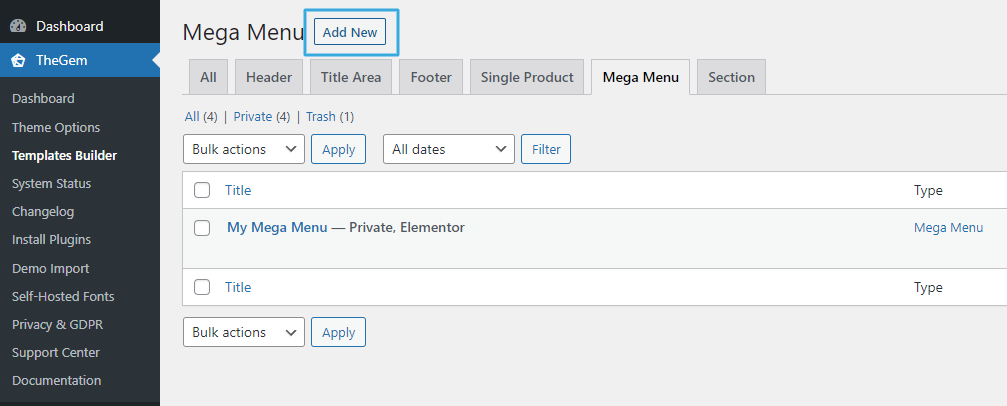
To create new mega menu template go to “TheGem -> Templates Builder -> Mega Menu” and click on “Add new”. The templates builder popup appears asking to enter the name of your new template.
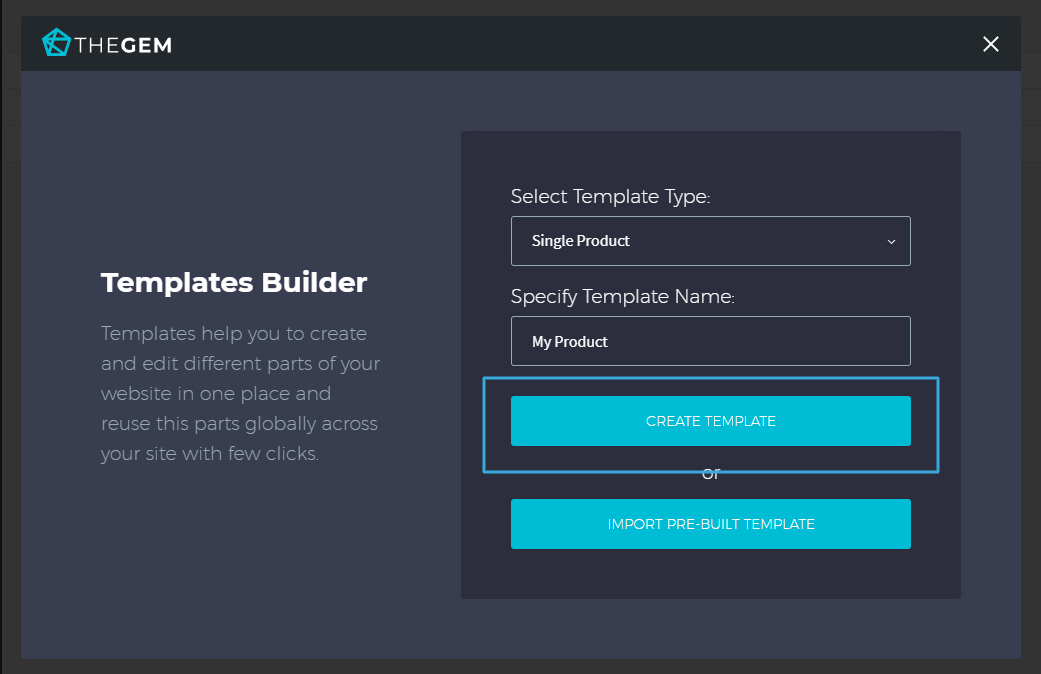
By clicking on “Create template” button the page builder starts loading. After that you can begin with creating your new mega menu template by adding the content elements – exactly in the same way as you usually do by creating/editing pages and post (for description of mega menu-specific content elements check the chapter below)
Please note: as mega menus are useful only for desktop screen resolutions and will be displayed only on desktops, there is no need to edit the responsive version of your mega menu template.
Inserting pre-built mega menu template
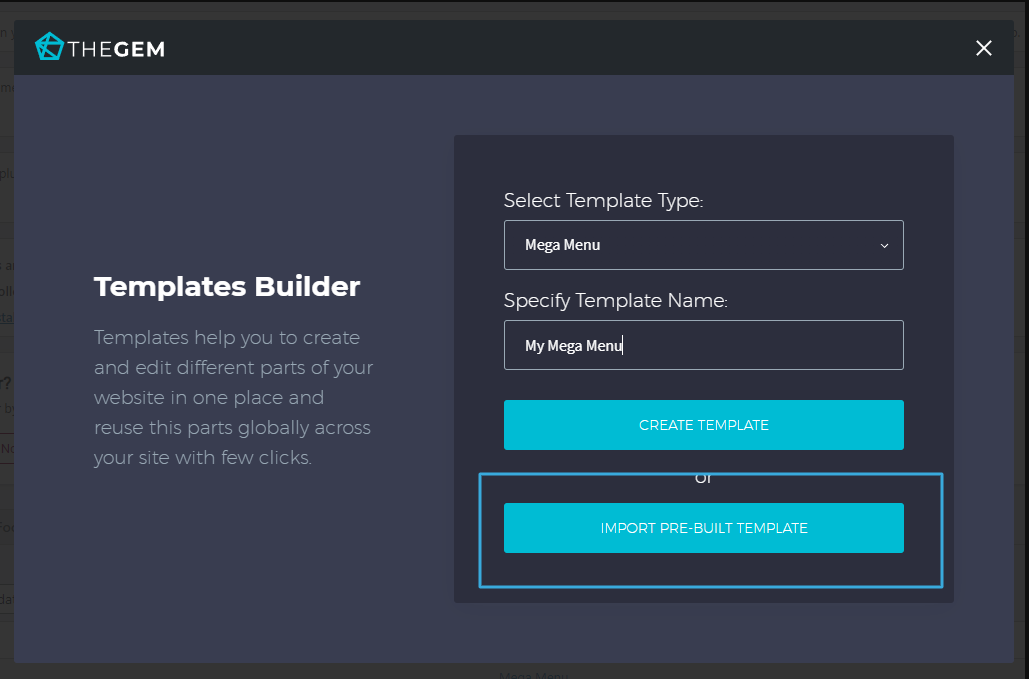
TheGem includes a massive library of pre-built mega menu templates to accelerate your work. It is a good starting point and a good inspiration source for your creative process. To insert a pre-built mega menu template, just click on “Insert pre-built template” in the templates builder popup.
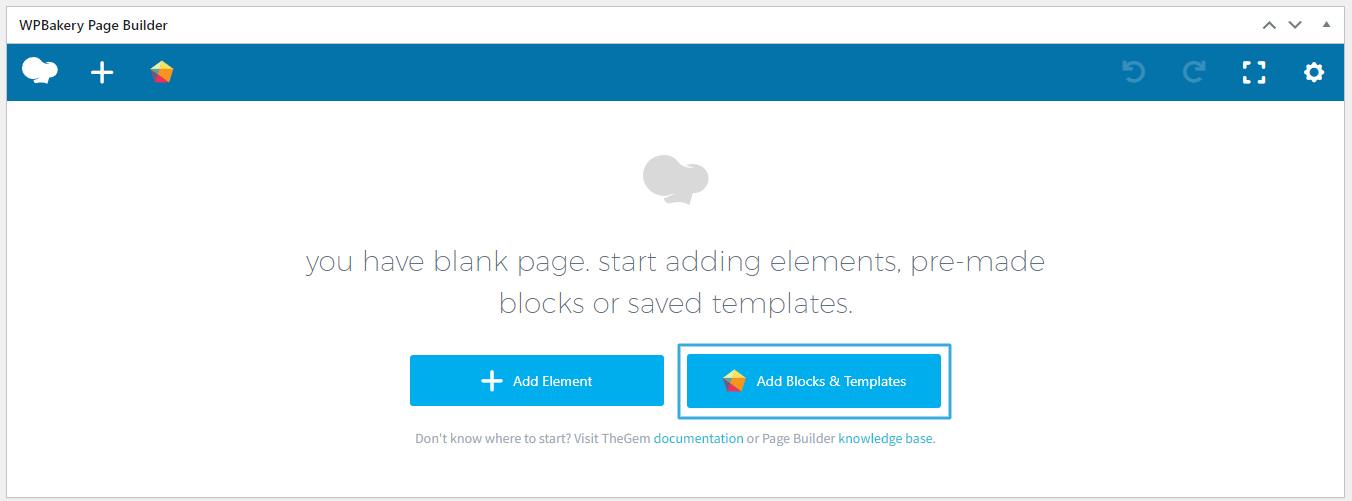
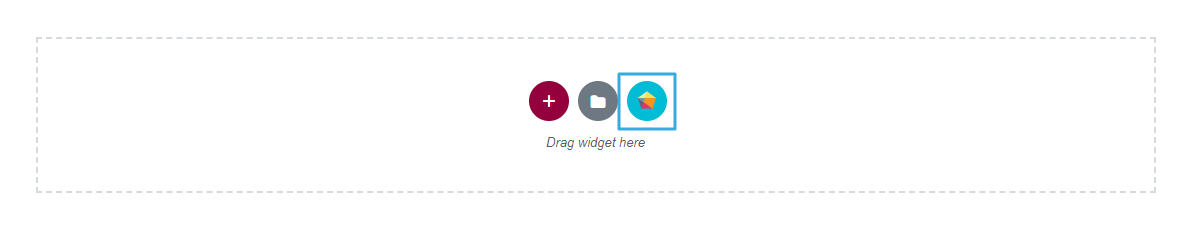
Also, all this pre-built mega menu templates are included in TheGem Blocks, so you can always insert any pre-built mega menu template while editing the mega menu in the page builder:
TheGem Blocks in WPBakery Page Builder
TheGem Blocks in Elementor
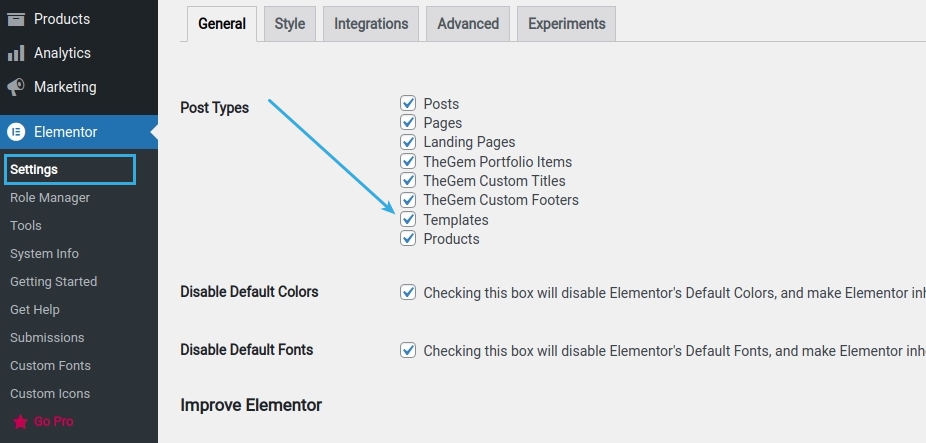
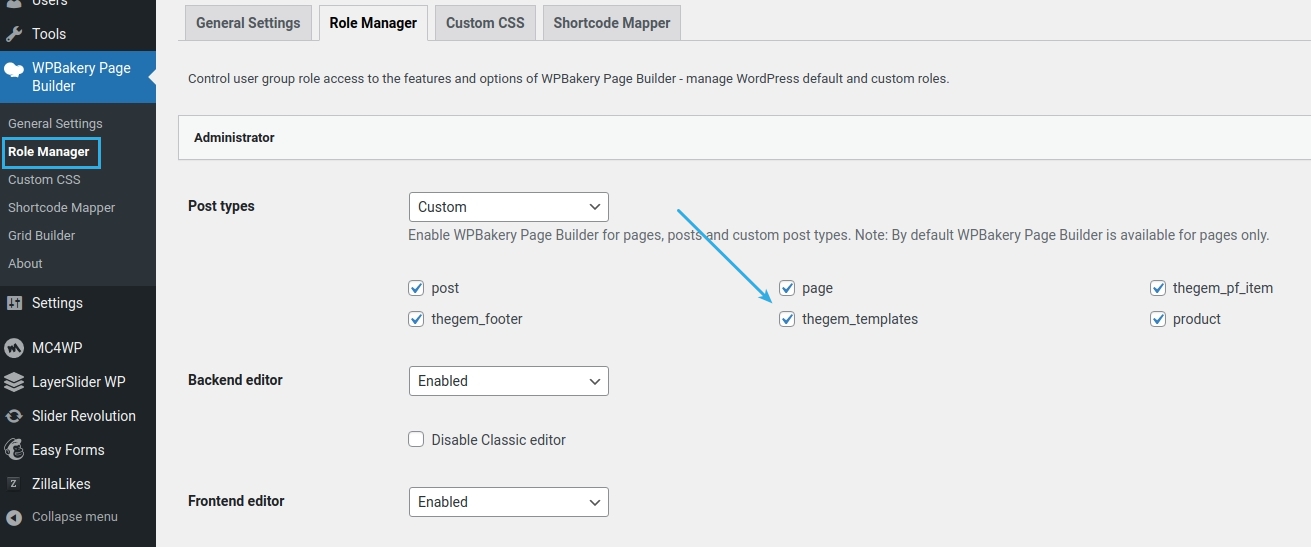
NOTE: in case your page builder is not starting, please ensure that TheGem templates are activated for editing with page builder.
Elementor: Go to “Elementor -> Settings” and activate TheGem Templates
WPBakery: Go to “WPBakery -> Role Manager” and activate “thegem_templates”
Activating mega menu template
To activate your newly created mega menu template to be displayed in your website’s menu, go to “Appearance -> Menus” in your WordPress admin and select the menu where you wish to add this mega menu template
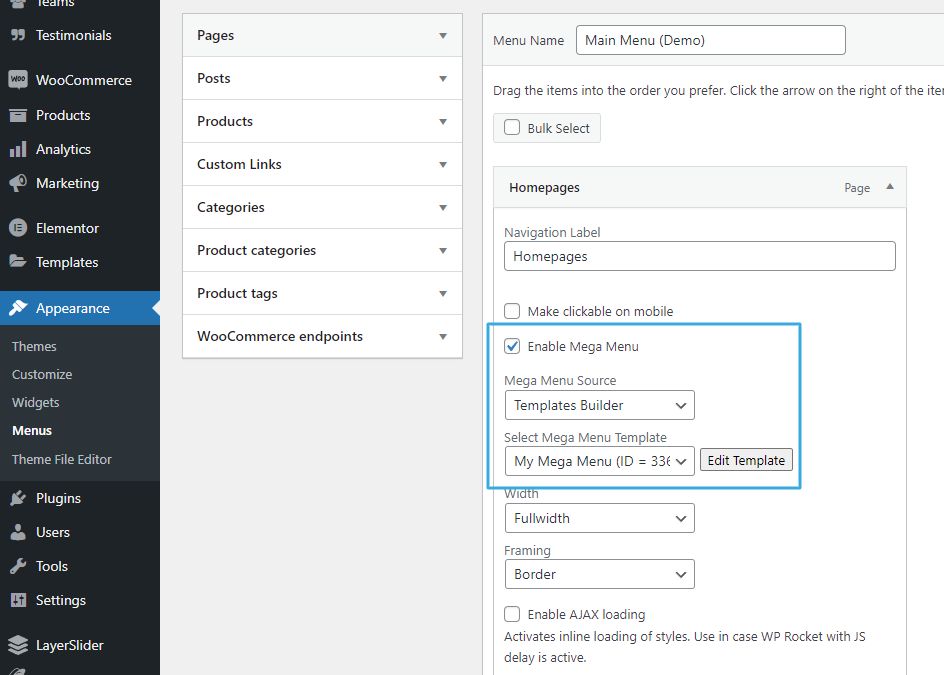
Please note the following things:
- mega menus can be activated only in menu items of the first hierarchy level (i.e. main menu items)
- mega menus will not be displayed in “Overlay” navigation type (instead, the submenu items will be displayed as in regular menu state)
- mega menus will not be displayed in responsive navigation, on tablets and mobile devices (instead, the submenu items will be displayed as in regular menu state)
To activate the mega menu template:
- open the menu item where you wish your mega menu to appear
- click on “Enable Mega Menu”
- select “Templates Builder” in “Mega Menu Source”
- select your template in “Select Mega Menu Template”
Following additional options can be set:
Width
here you can select the width of your mega menu dropdown:
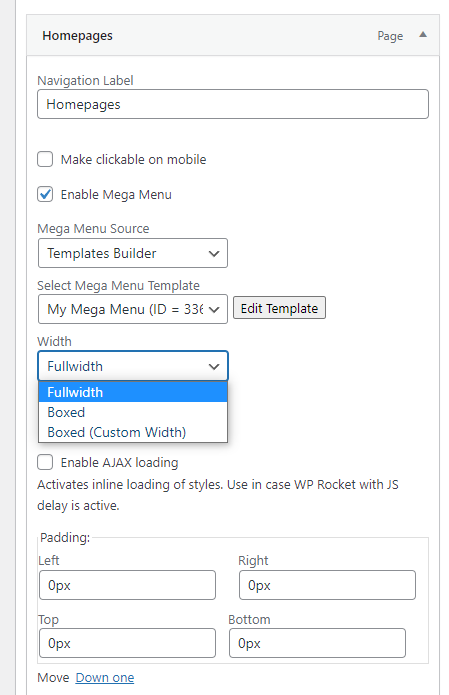
- “Fullwidth” means the mega menu template will be placed in the fullwidth container, filling the whole accessible width of your screen. This option is especially recommended for pre-built TheGem mega menu templates, which have the word “Fullwidth” in their titles
- “Boxed” means the mega menu template will be placed in the container, which has the same width as header container of your website (i.e. mega menu will be aligned to the left and right borders of the header)
- “Boxed (Custom width)” means you can manually specify the width of the container for your mega menu template
Framing
here you can specify the framing for you mega menu template:
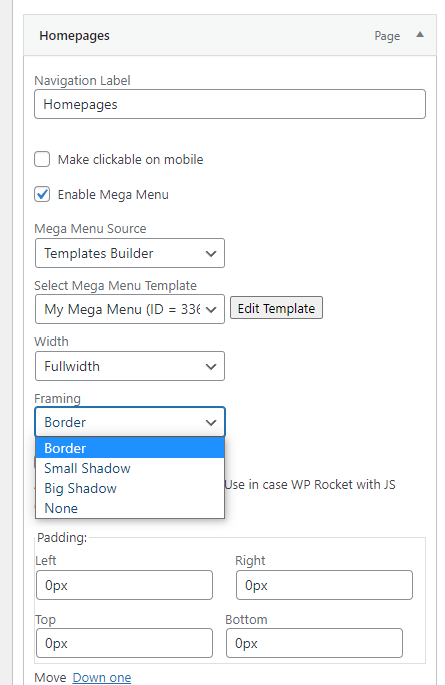
- Border: your mega menu template will be framed with a thin border
- Small Shadow: small shadow will be added to your mega menu template
- Big Shadow: big shadow will be added
- None: no framing will be added
Enable AJAX loading
if activated, this option will cause css & js of all mega menu elements to be loaded inline. This option is useful in case you use TheGem’s one-click optimization or any other caching plugin (like WP Rocket) with “Delay JS execution” option enabled.
Padding
Here you can add additional paddings to the container where your mega menu template is placed.
Please note: this paddings are not the paddings of your template, but paddings of the container, where the template is placed.
Responsive navigation
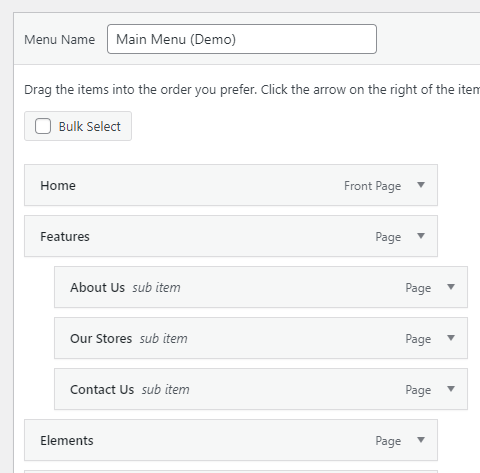
As stated above, mega menus are not displayed on tablets and mobiles. In order to make the responsive sub-navigation in the menu item, where you have activated the mega menu template, you just need simply to add the necessary navigation items as sub-items to this parent item – exactly in the same way as you do it by creating regular submenus. So in this way the mega menu template will be shown on desktops and sub-items will be shown on tablets / mobiles
Custom Menu
With this element you can add a navigation list / menu list to your mega menu template.
Menu Source: select the source for displaying menu list.
By selecting “Appearance->Menu” you can then select which menu should be displayed from the menus you have created in your WordPress admin.
By selecting “Custom list” you can create your own custom navigation list by adding items in the repeater control. For each item in this custom list you can specify the label by entering the label text and setting the label colors and add icon by activating the “Icon” control.
Font preset: this control helps you to apply the typography preset to your custom menu list.
Heading: here you can add a heading to the custom menu list. As with the custom list items, here you can also add icon and label and specify the link (i.e. making the heading of the menu list clickable as well).
Infotext (WPBakery) / Infobox (Elementor)
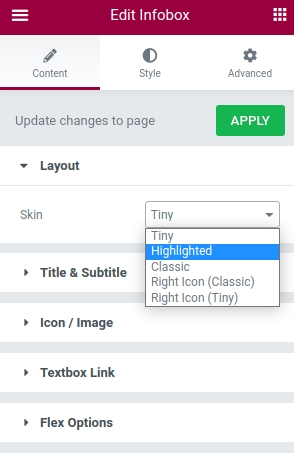
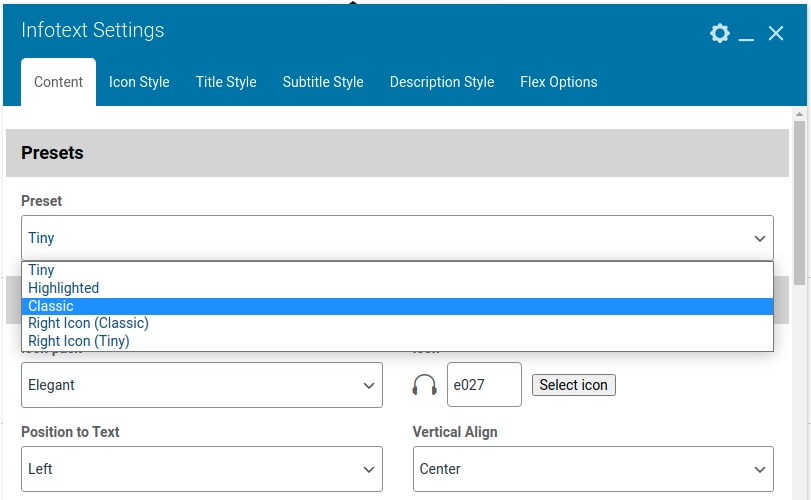
With this element you can quickly add an information text with an icon. It is useful to make quickfinders and navigation items with icon and extended descriptions. For quick editing this element includes a number of presets, which can be selected in Preset select box.
Elementor:
WPBakery :
Products Compact Grid/List
This content element is similar to the Products Grid element (it is a light-weighted version of Products Grid, you can find the detailed description in this chapters: WPBakery version, Elementor version and allows you to add products to your mega menu in a compact style. Using this element you can highlight some specific products directly in your mega menu, or expose some recent / sale products from different categories.
Blog List / Blog
With this element you can add list of blog posts, for example “Latest News”, “Popular Posts” etc. The detailed description of this content element can be found here: Elementor version / WPBakery version
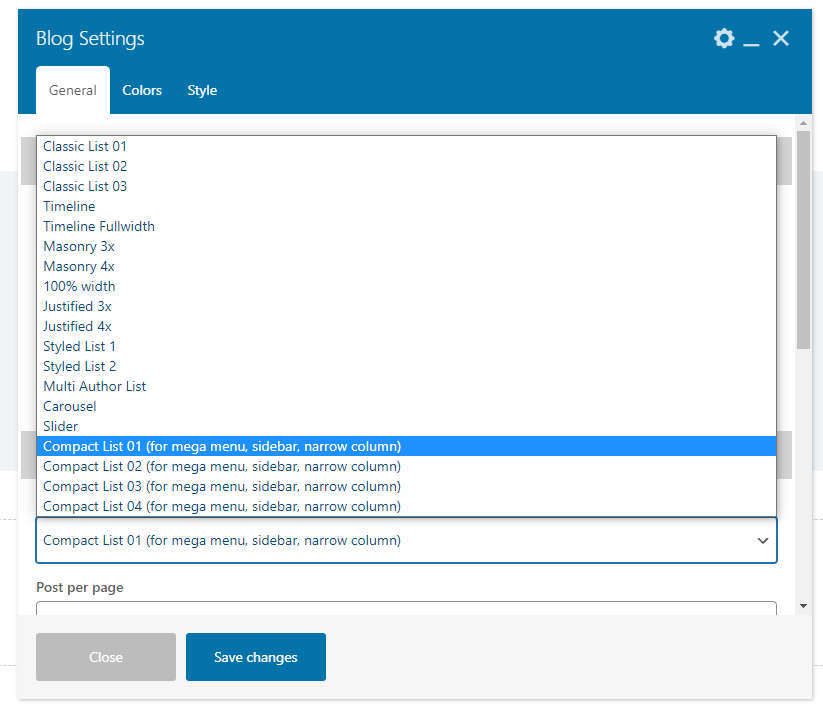
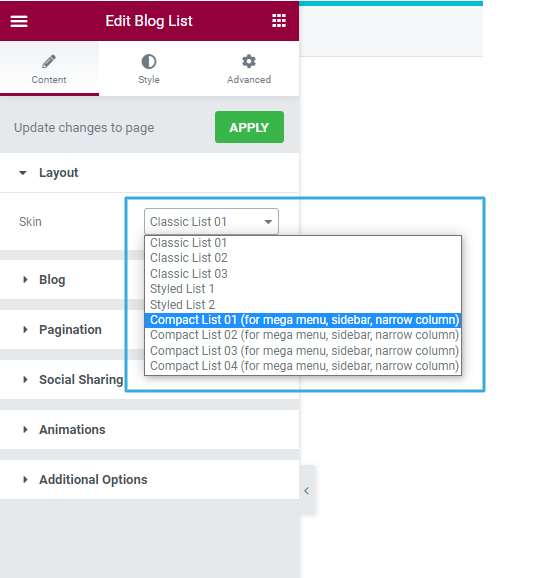
Please note: specifically for mega menu templates TheGem includes special style presets for displaying blog list in compact styles. All this presets can be found in “Skin” (Elementor) / “Style” (WPBakery) control and have an additional description in their names – “for mega menu, sidebar, narrow column”
Elementor:
WPBakery: